Docs / Fudoshin
Fudoshin - Risk Guardian
Set your drawdown and daily-loss limits, arm enforcement, and let the guard flatten and lock you out before your prop firm does it for you.
Last updated 2026-08-25
Fudoshin (不動心, “immovable mind”) is the enforcement layer. It watches every connected account against your prop firm’s rules plus your own tighter limits, and when a line is crossed it acts: warn, flatten, lock the account for the rest of the session, or disconnect.
Everything it does is local. Enforcement runs inside NinjaTrader on your machine and does not need our servers, an internet connection, or a login. The cloud only supplies the signed rules and news feed.
The one-minute setup
- Open Fudoshin from the NinjaTrader Control Center.
- In the Accounts grid, tick Manag(ed) for the accounts you want guarded.
- Set each account’s Ruleset (which prop-firm plan it is) and Risk type (Evaluation, Funded, or Cash).
- Set your Loss limit sliders in the Enforcement settings bar.
- Tick Arm enforcement.
That is the whole product. Everything below is detail.
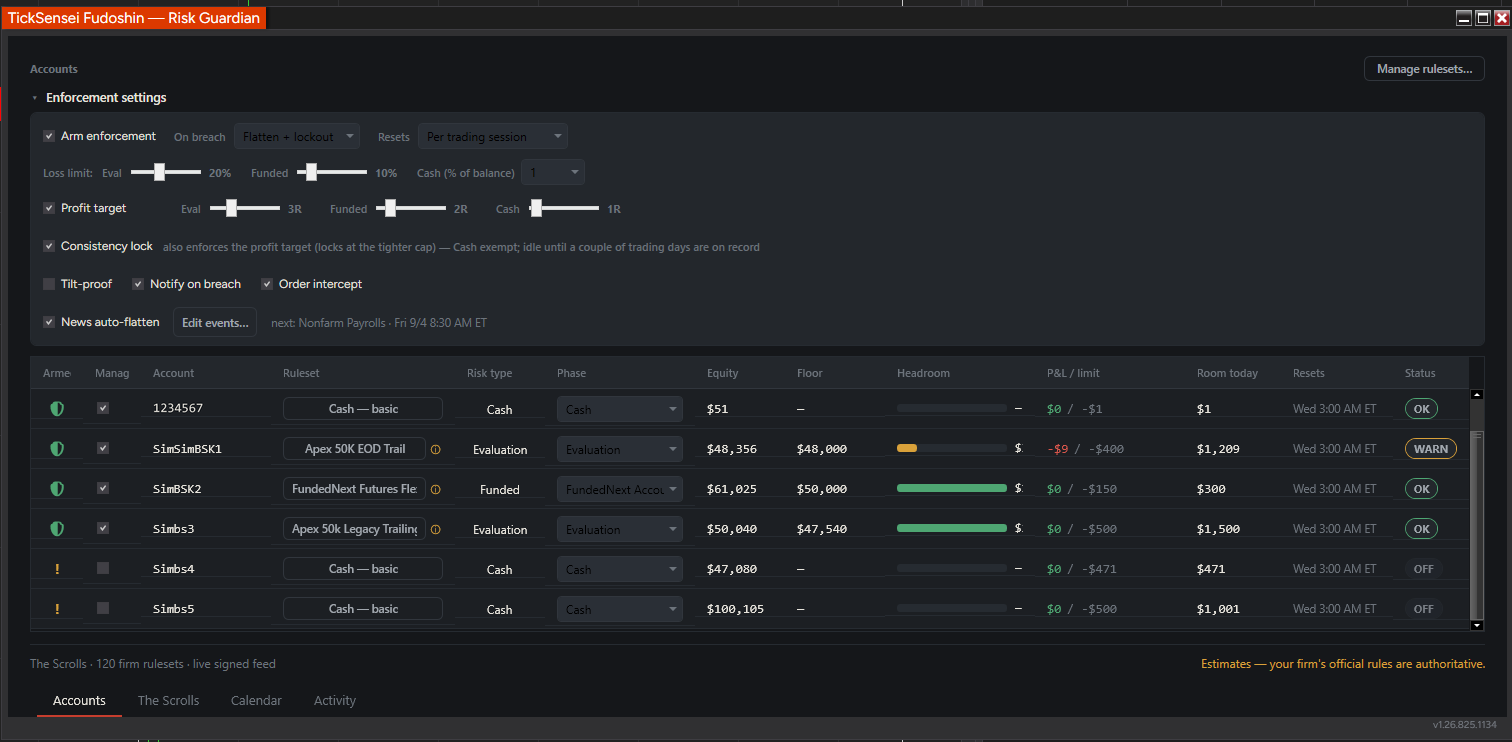 The Accounts tab. The settings bar at the top is global policy; the grid below is per account.
The Accounts grid, column by column
| Column | What it means |
|---|---|
| Armed | Whether the guard is actively enforcing on this account. A warning icon means enforcement is off for it. |
| Managed | Your opt-in. Unticked accounts are watched but never touched. Sim and numbered accounts default to unmanaged, so a demo account cannot surprise you. |
| Ruleset | Which prop-firm plan this account follows. The ⓘ icon shows where the numbers came from and when they were last verified. |
| Risk type | Evaluation, Funded, or Cash. This picks which loss-limit slider applies. |
| Phase | The lifecycle phase inside the ruleset (evaluation vs funded), since limits and contract caps differ by phase. |
| Equity | Current account equity, including open-trade P&L. |
| Floor | Your trailing drawdown floor. Touch this and the account is dead at the firm. |
| Headroom | The bar: how much room is left before the floor. Green is comfortable, amber is the warn band. |
| P&L / limit | Today’s P&L against the daily-loss limit actually being enforced. |
| Room today | Dollars left before the daily stop fires. This is the number to look at before sizing a trade. |
| Resets | When the session limits clear. Times are US Eastern. |
| Status | OK, WARN, LOCKED, or OFF. |
Setting your limits
Loss limit: a percentage of drawdown, not a dollar guess
The loss limit sliders set your self-imposed daily stop as a share of the account’s trailing drawdown, separately for each risk category:
- Eval and Funded are percentages of the drawdown allowance. On a $2,000 drawdown, 10% flattens you at -$200.
- Cash is a percentage of account balance instead, because cash accounts do not have a firm drawdown.
This is the single most useful setting in the product. A fixed dollar stop is wrong the moment you switch account sizes; a percentage of drawdown scales with whatever you are trading and keeps the same number of bad days between you and a blown account.
A reasonable starting point: 10% on funded accounts, 20% on evaluations. That gives you five to ten losing days of runway.
Profit target: the other side of the discipline problem
The Profit target sliders lock the account once you are up by an R-multiple of your loss limit (3R on evals, 2R funded, 1R cash in the screenshot). Hit the target and the period locks, exactly like a loss. Giving back a good day is how most funded accounts die, and this is the fix.
Consistency lock
Most firms cap how much of your total profit can come from a single day. Consistency lock computes the maximum profit today can reach and still keep you payout-eligible, and enforces the tighter of that cap and your profit target. Cash accounts are exempt, and the rule stays idle until you have a couple of trading days on record to compute against.
On breach and Resets
On breach is what happens when a limit is crossed: warn only, flatten, or Flatten + lockout (the default, and the one that actually works).
Resets decides the scope of a daily limit: Per day uses the Eastern calendar day; Per trading session resets at each session boundary (Asia, London, New York), which suits traders who treat overnight and RTH as separate books. Both are Eastern time and DST-aware.
Tilt-proof
Tilt-proof is the setting that makes the rest of the product real.
With tilt-proof armed:
- A lockout cannot be lifted by hand. It clears when the next session starts, not before.
- The lockout survives closing the window, closing NinjaTrader, and restarting the machine.
- You cannot loosen an account’s risk type, un-manage an account, or edit enforcement settings while it is armed.
- Turning tilt-proof off takes four hours. Flipping the switch starts a delayed disable, and that delay is written to disk so a restart cannot dodge it.
That four-hour delay is the entire feature. Any risk tool you can switch off in the moment you most want to switch it off is decoration.
Leave tilt-proof off while you are learning the product. Turn it on when you are ready to stop negotiating with yourself.
Order intercept
Order intercept is a pre-trade control. NinjaTrader gives add-ons no way to veto an order before it is submitted, so Fudoshin does the next best thing: it watches new orders and immediately cancels ones that break your rules.
It cancels:
- Entries that would push you past the contract cap for the account’s current phase.
- Any new entry while the account is locked out.
It never cancels exits, position-reducing orders, or protective bracket children. Going flat is always allowed.
News auto-flatten
Tick News auto-flatten and Fudoshin goes flat before high-impact economic releases and keeps you flat through the window. The settings bar shows the next event inline (for example, next: Nonfarm Payrolls, Fri 9/4 8:30 AM ET).
This is a temporary blackout, not a lockout: when the window passes, you can trade again. It works independently of your firm’s rules, so it protects you even on firms that permit news trading.
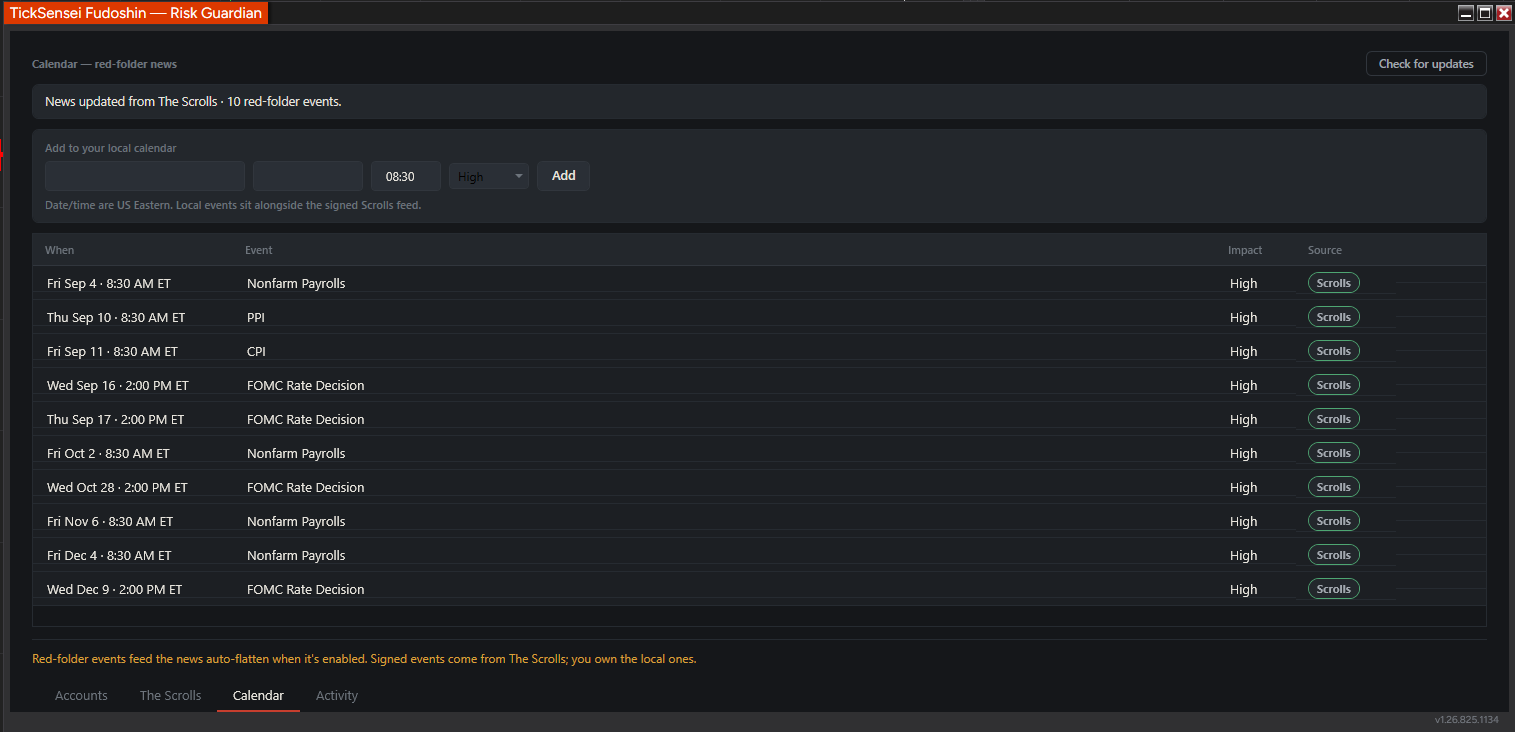 The Calendar tab. Signed events arrive from The Scrolls; the form at the top lets you add your own, which sit alongside them.
Use Edit events… or the Calendar tab to add anything the feed does not carry: your firm’s own blackout windows, an earnings date you care about, or a personal “do not trade” slot.
The Scrolls: where the firm rules come from
The Scrolls is our signed feed of prop-firm rulesets. 120+ firm plans ship in it, each carrying its drawdown type and amount, daily loss, consistency share, contract limits, and a verified-as-of date.
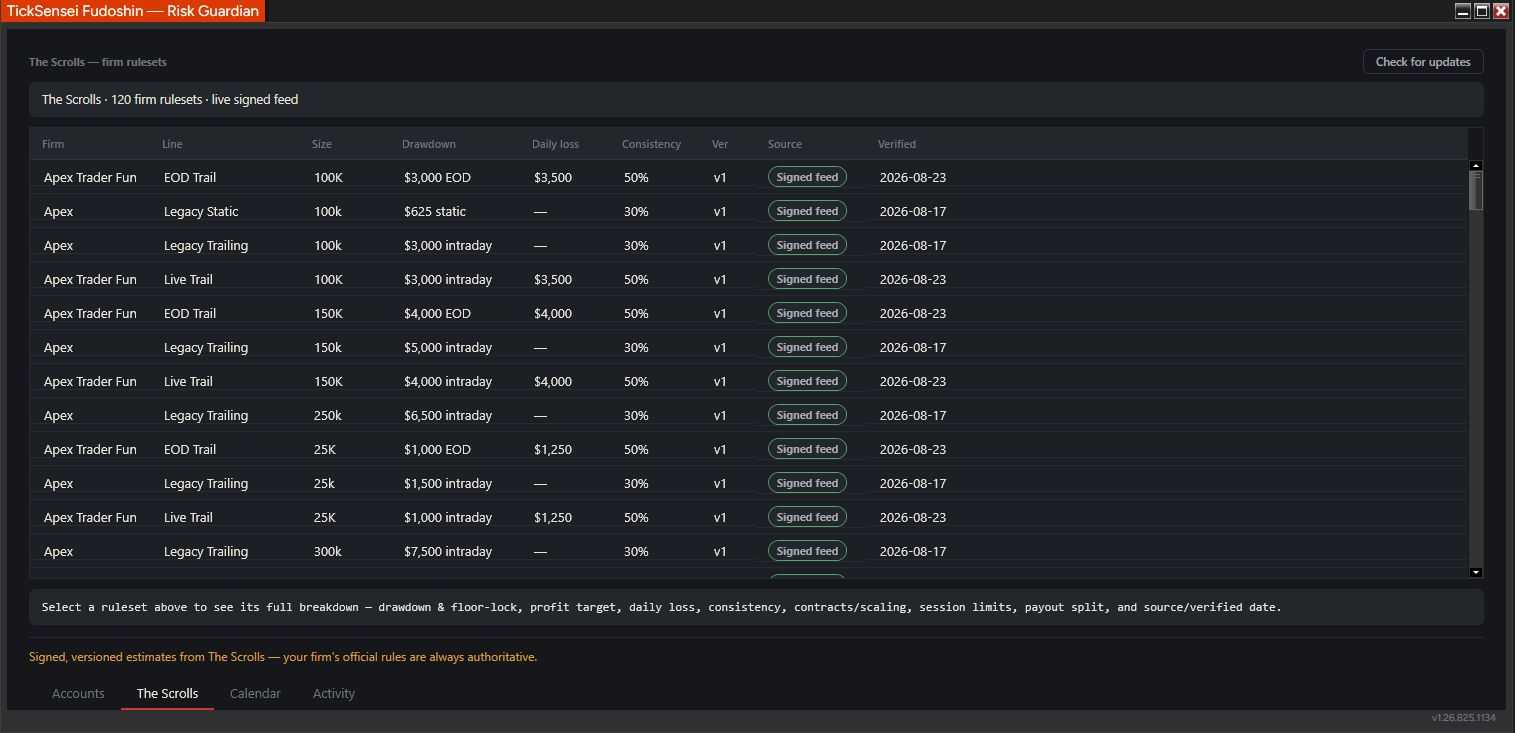 The Scrolls tab. Every row shows its source and the date the numbers were last verified.
How it works, and why you can trust it:
- The feed is Ed25519-signed. Fudoshin verifies the signature and then verifies each firm file’s hash before loading anything. Rules that do not verify never reach the engine.
- Rules are versioned with rollback, so a bad update can be undone.
- Anything you edit yourself is marked as a local edit and the feed will never overwrite it.
- The client polls on startup and every twelve hours. Check for updates forces a refresh.
The Source pill tells you where a ruleset came from: Signed feed, Built-in, or Local edit.
Every number in Fudoshin is an estimate reconstructed from your account data. Your firm’s own ledger is the authoritative one. Use the guard to stay well clear of a limit, not to shave the last dollar off it.
Building or editing a ruleset
If your firm or plan is not in The Scrolls, or a number has changed, click Manage rulesets… to open the Ruleset Builder.
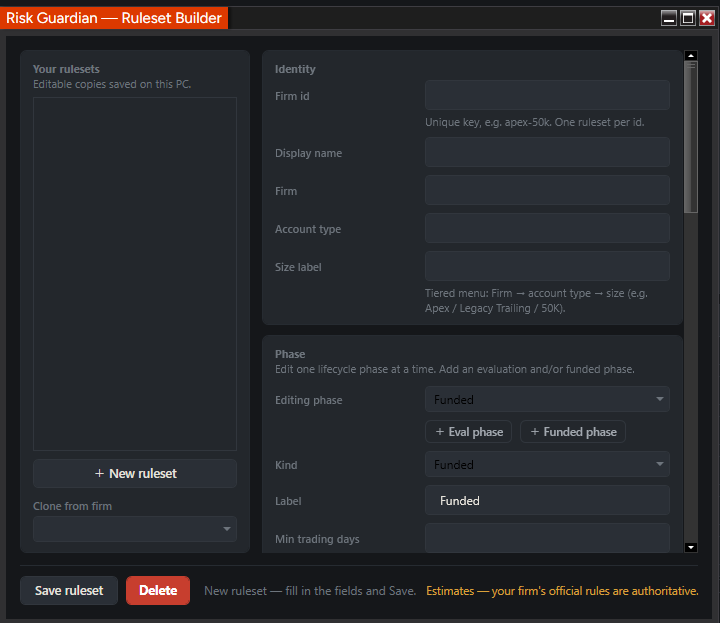 The Ruleset Builder. Give the ruleset an identity, then configure one lifecycle phase at a time.
- Firm id is a unique key such as
apex-50k. One ruleset per id. - Firm, Account type, and Size label drive the tiered menu you pick from in the Accounts grid (Firm, then account type, then size).
- Phase lets you configure the evaluation and funded phases separately, with their own limits, contract caps, and minimum trading days.
- Clone from firm starts from an existing ruleset instead of a blank form, which is usually faster.
Your rulesets are saved locally and marked as custom, so a feed update will not clobber them. If your firm’s real numbers differ from what The Scrolls says, tell us and we will fix the feed for everyone.
The Activity log
Every warn, flatten, lock, and unlock is written to an append-only log, newest first.
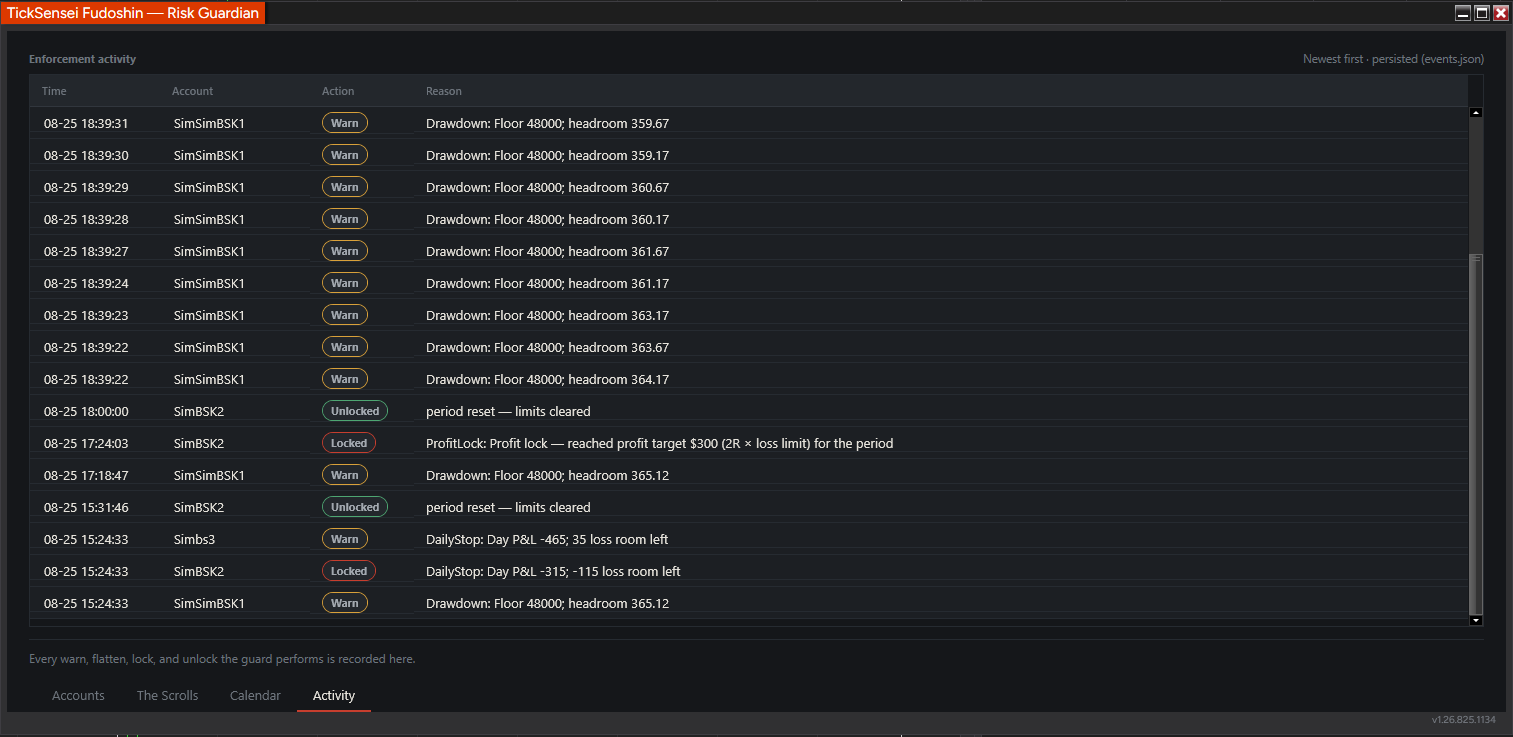 The Activity tab. Each row carries the reason: which rule fired, and the numbers at the moment it fired.
Read the Reason column. Drawdown: Floor 48000; headroom 359.67 and DailyStop: Day P&L -315; -115 loss room left tell you exactly what the engine saw. ProfitLock: reached profit target $300 (2R x loss limit) for the period is a good day being protected. This log is the best session-review material in the suite, and it pairs well with Sensei.
Recommended configurations
On an evaluation, trying to pass: Loss limit 20% of drawdown, profit target 3R, consistency lock on, on breach Flatten + lockout, resets per day, tilt-proof off until you trust it. The consistency lock matters more than you think on evals with a payout-split rule.
On a funded account you want to keep: Loss limit 10%, profit target 2R, consistency lock on, tilt-proof on, order intercept on, news auto-flatten on. This is the configuration that survives.
On a cash account: Loss limit 1 to 2% of balance, profit target 1R, consistency exempt. No trailing floor exists, so the daily stop is doing all the work.
Troubleshooting
An account shows OFF. It is not managed. Tick the Managed box, or arm enforcement globally.
Headroom shows a dash. The account has no trailing drawdown, which is normal for cash accounts. The daily stop still applies.
The floor looks wrong. Check the Ruleset and Phase on that row. An evaluation ruleset applied to a funded account will compute the wrong floor. Auto-match picks the preset whose start balance is closest to your account balance, which is usually right and occasionally is not.
I am locked out and I want back in. If tilt-proof is off, the lock clears at the next reset shown in the Resets column. If tilt-proof is on, it clears at the next session and there is no override. That is by design.
The Scrolls says my firm’s limit is different from what my firm says. Trust your firm. Edit the ruleset locally, then send us the correction.
Related
- Kiai - Alert Bridge: get the guard’s breach alerts on your phone
- Ukemi - Strategy Safety Net: Ukemi can borrow Fudoshin’s limits for automated strategies
- Honbu - Command Center: the kill switch across every account at once
Estimates and tooling only. Your prop firm's published rules are always authoritative, and nothing here is financial advice. Questions? support@ticksensei.com