Docs / Sensei
Sensei - AI Copilot
Claude inside NinjaTrader. Review your session, read a chart and draw the levels back onto it, answer questions about your real account limits, and write NinjaScript.
Last updated 2026-08-25
Sensei (先生) puts Claude inside NinjaTrader with access to what actually happened: your fills, your account limits, and the chart in front of you. That is the difference between this and pasting a screenshot into a chat window. Sensei knows your MFE and MAE on every trade, knows the daily-loss headroom Fudoshin is enforcing, and can draw its analysis back onto the chart as real price levels.
Sensei never trades. It reads. Every order-affecting path in the product runs through a firewall that requires an explicit confirmation, and there is no path from a suggestion to a live order. Nothing it says is financial advice.
Choosing a tier
Two ways to pay for the model:
- Ronin (BYOK): bring your own Anthropic API key. You pay Anthropic directly for usage, and Sensei shows your running session cost. Cheapest at low volume, and your key never leaves your machine (it is encrypted at rest with Windows DPAPI).
- Deshi and Shihan (hosted): we supply the model. Calls go through our platform, which holds the key server-side and meters your usage against a monthly allowance. Nothing to set up. The status line under the composer shows the percentage of your allowance used.
See pricing for current tiers. You can switch between BYOK and hosted from the settings icon in the composer.
Setting up BYOK
- Create an API key at console.anthropic.com.
- In Sensei, open settings from the composer and paste the key.
- Two models are configured: a reasoning model for code generation and session review, and a fast model for chat, account questions, and chart reading. The defaults are the right ones.
Session review
The single highest-value feature, and the one to use first. Click Review session.
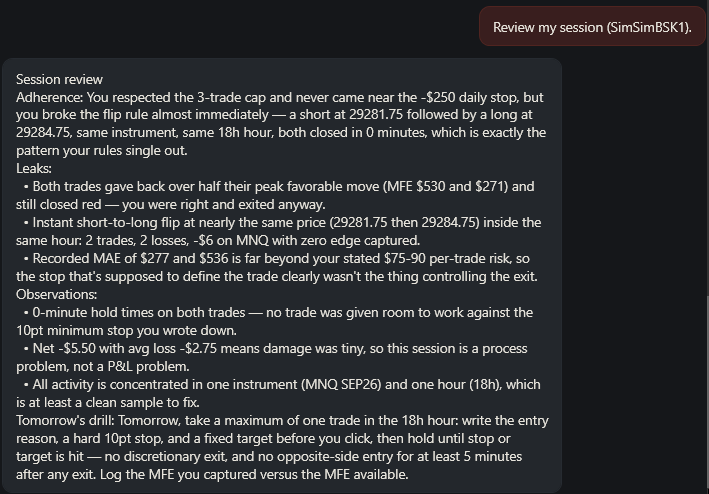 A session review. The statistics are computed locally in C#; only the derived aggregates go to the model.
How it works: Sensei joins your executions into round-trip trades with FIFO matching, computes win rate, P&L by hour and by instrument, and calculates maximum favorable and adverse excursion per trade from the bar data. Then it hands those aggregates to the model for interpretation. Your raw trade list never leaves the machine.
What comes back is process feedback, not P&L cheerleading:
- Adherence: which of your own rules you kept and which you broke.
- Leaks: the specific, repeated mistakes. “Both trades gave back over half their peak favorable move” is an MFE finding you cannot see by staring at a P&L column.
- Observations: what the shape of the session says. A tiny net loss across two trades in one hour is a process problem, not a P&L problem, and the review says so.
- Tomorrow’s drill: one concrete, checkable thing to do differently.
Run it at the end of every session. The reviews compound.
Chart analysis and on-chart markings
Add the Sensei Chart indicator to any chart. A small logo button appears on the chart; click it to capture that chart and open Sensei with the image and the chart’s context attached.
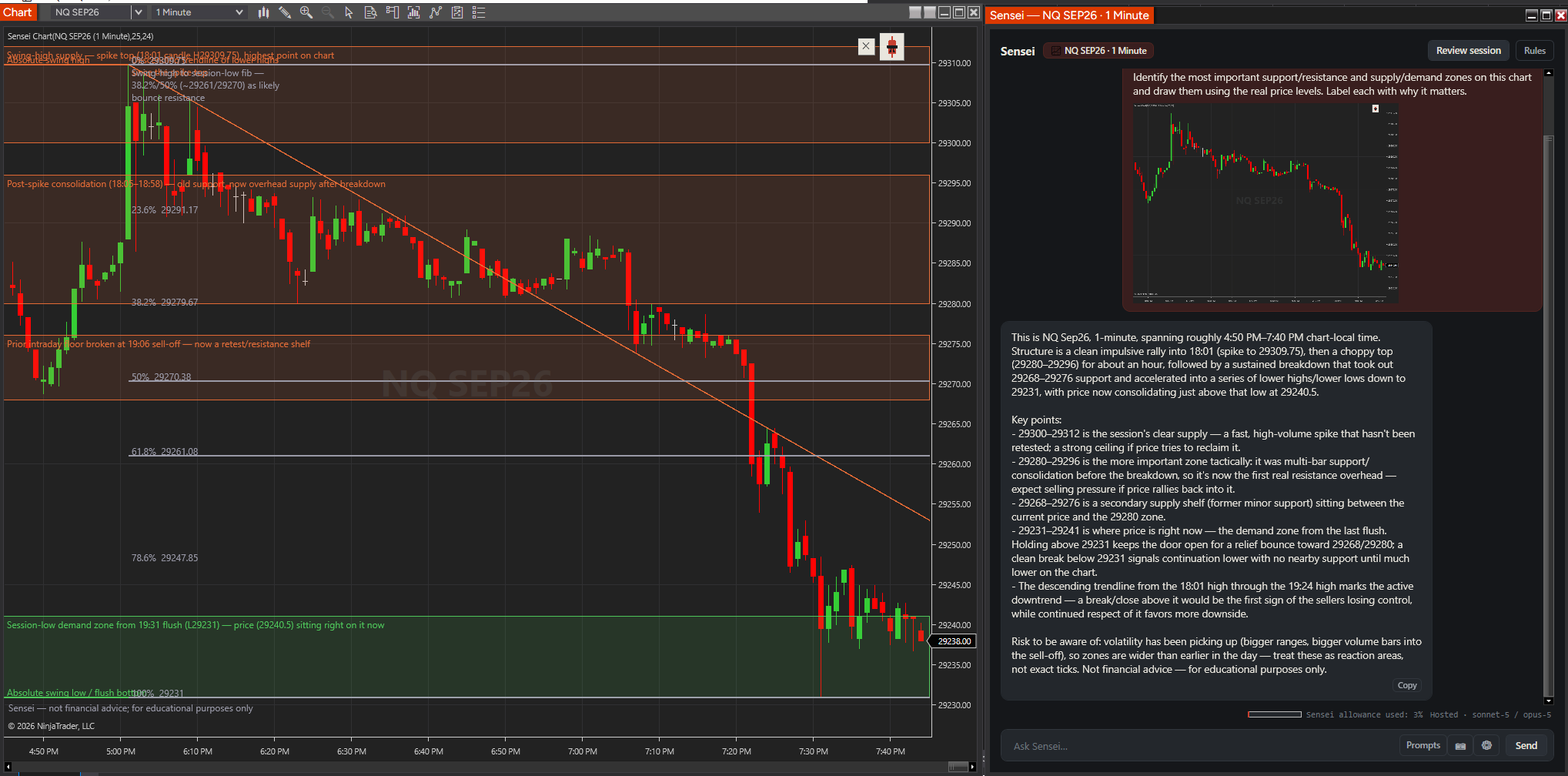 Sensei read this NQ 1-minute chart, then drew its zones, fib levels, and the active downtrend line back onto it at real prices, each labelled with why it matters.
Sensei does not just describe the chart. Ask it to mark the chart and it returns structured levels, zones, trendlines, and fib retracements, which the indicator draws at actual price levels with labels. You get an annotated chart you can keep trading from.
Useful prompts:
- “Identify the most important support/resistance and supply/demand zones on this chart and draw them using the real price levels. Label each with why it matters.”
- “Draw the fib retracement from the session high to the session low and mark the levels most likely to act as resistance.”
- “What is the structure here: trend, range, or transition? Mark the level that would invalidate your read.”
Chart capture is a screen capture of the chart window, so the chart must be visible and not minimised. Images only leave your machine when you send the message.
Account questions
Sensei reads your account state in-process: balances, open positions, working orders, and day P&L. Combined with the limits Fudoshin is enforcing, it can answer risk questions with your real numbers rather than generic advice.
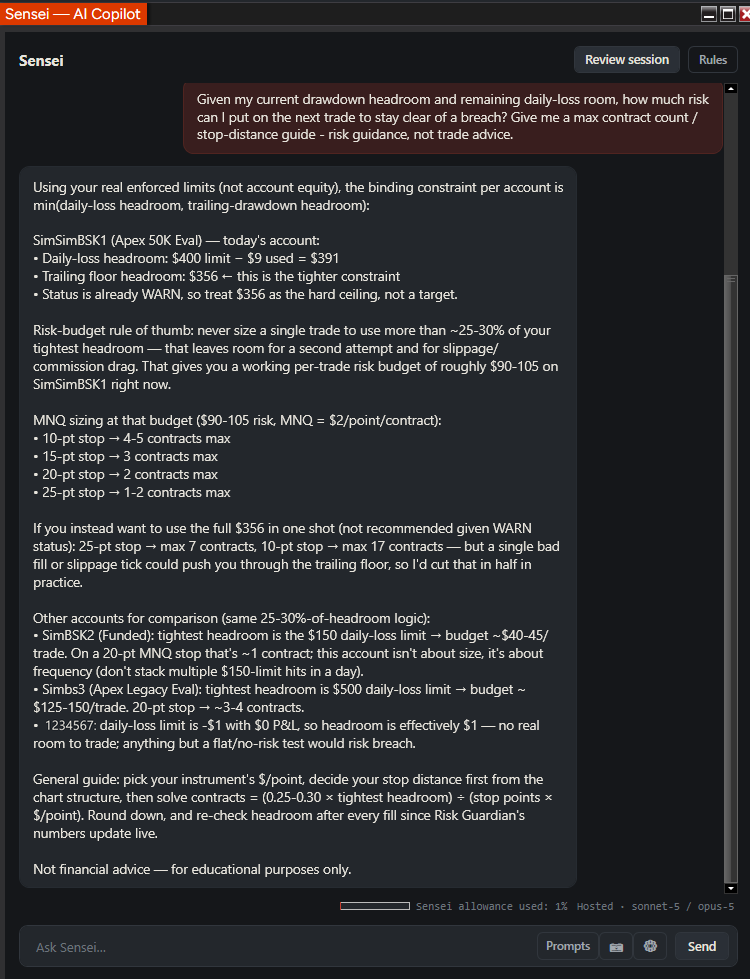 Sensei working from enforced limits rather than account equity: it identifies the binding constraint per account, then converts it into a per-trade risk budget and contract counts by stop distance.
Questions that work well:
- “Given my current drawdown headroom and remaining daily-loss room, how much risk can I put on the next trade to stay clear of a breach?”
- “Which of my accounts has the least room right now?”
- “I want to take a payout. What does the consistency rule say about how I trade the rest of this week?”
Note what it does in the screenshot: it uses the tighter of daily-loss headroom and trailing-floor headroom, not account equity, because that is the constraint that actually kills accounts. That framing is worth internalising even without the tool.
This is read-only. Sensei cannot place, modify, or cancel an order.
NinjaScript code generation
Describe an indicator or a strategy and Sensei generates a complete .cs file on the reasoning model.
Before anything is written to disk, the generated code is linted against safety rails. Code that reaches the network, touches the filesystem, or switches accounts is blocked unless you have explicitly allowed that capability. Tripped code is never saved.
If it passes, you get a confirm card. Click Save and the file is written to bin\Custom\Indicators or bin\Custom\Strategies. NinjaTrader compiles it on reload.
The fix loop is user-mediated: if NinjaTrader reports compile errors, paste them back into the chat and Sensei returns a corrected file. Automatic compilation is not wired up yet, so this step is manual by design rather than by accident.
Always test generated code on Playback or Sim first. Generated NinjaScript is a draft, not a product.
The prompt library
Click Prompts in the composer for 24 built-in prompts across Performance, Account, Chart, NinjaScript, and Process. Chart prompts only appear when a chart is attached.
Prompts insert into the composer, never auto-send, so you can edit before running. Save your own under My prompts with a name, the text, and whether it needs a chart. Your best recurring questions belong here.
Rules
The Rules button holds the trading rules you have written for yourself. Sensei reads them during session review, which is what lets it say “you broke the flip rule almost immediately” instead of generic feedback.
Write them concretely and checkably: “maximum 3 trades per session”, “10-point minimum stop on MNQ”, “no opposite-side entry within 5 minutes of an exit”. Vague rules produce vague reviews.
Cost and allowance
The status line under the composer shows either your hosted allowance percentage or your BYOK session cost, plus which models are in use.
On hosted tiers we meter real token usage against a monthly dollar allowance, warn at 80%, and stop at 100%. On BYOK you see the session cost and Anthropic bills you.
Cost control, in order of impact: chart images are the expensive part, so attach a chart when you want chart analysis and not otherwise. Session review runs on the reasoning model and is worth it once a day. Chat and account questions run on the fast model and are cheap.
Using Sensei from Claude Desktop or Claude Code
Sensei ships a local MCP server that exposes read-only NinjaTrader session and account data to an external MCP client such as Claude Desktop, Claude Code, or Cursor. It communicates over a loopback-only socket guarded by a per-run token, and exposes no trade actions.
This is for anyone who wants to analyse their trading in a larger AI workspace instead of inside NinjaTrader. See the MCP setup notes shipped with the product for the client configuration.
Troubleshooting
“Chart capture failed” or a black image. NinjaTrader charts are hardware-rendered, so Sensei captures what is on screen. The chart window must be visible, not minimised, and not covered.
Markings do not appear on the chart. The Sensei Chart indicator must be on that specific chart. Markings route back to the chart the capture came from.
Allowance exhausted. You have used the month’s hosted allowance. Upgrade the tier, wait for the monthly reset, or switch to BYOK.
BYOK calls fail with an auth error. Re-paste the key. Confirm it is an Anthropic API key with credit on the account, not a Claude.ai login.
Generated code will not compile. Expected on a first pass. Copy NinjaTrader’s error list into the chat and ask for a corrected file.
Related
- Fudoshin - Risk Guardian: supplies the enforced limits Sensei reasons about
- Getting started: install and activation
Estimates and tooling only. Your prop firm's published rules are always authoritative, and nothing here is financial advice. Questions? support@ticksensei.com