Docs / Setup
Getting started
Download the installer, add TickSensei to NinjaTrader 8, activate your license, and confirm everything is running. About ten minutes, most of it waiting on NinjaTrader.
Last updated 2026-08-25
Before you start
You need three things:
- NinjaTrader 8 installed and working (any live, sim, or prop-firm connection).
- A TickSensei account with at least one active license or trial. If you do not have one yet, pick a tool or a belt on the pricing page and start a 7-day trial.
- A few minutes with NinjaTrader closed. The installer writes into NinjaTrader’s
bin\Customfolder, so it will refuse to run while NinjaTrader is open. This is deliberate: installing under a live NinjaTrader is how you corrupt an add-on.
TickSensei is Windows-only, because NinjaTrader 8 is.
Step 1 - Download the installer
Sign in to the Dojo (your account portal) at app.ticksensei.com and click Download installer. You get a single TickSensei-Installer.exe. There is nothing else to download: one installer carries every product, and your license key decides what unlocks.
If you bought during a beta or from a staging link, the file will be named TickSensei-Installer-STAGING.exe and the installer shows a red banner. That build talks to our test backend and your production keys will not work in it. Use the plain installer.
Step 2 - Close NinjaTrader, then run the installer
Fully exit NinjaTrader 8, including the Control Center. Then run the installer.
If NinjaTrader is still running, the installer waits and prompts you to close it rather than pushing ahead. Close it and press Enter.
The installer:
- Finds your NinjaTrader 8
Documentsfolder. - Copies the add-on assemblies into
bin\Custom, plus the Sensei chart indicator if you have Sensei. - Installs a small background Updater into
%LocalAppData%\TickSensei\Updaterand registers a per-user scheduled task that runs at logon and once a day.
The Updater never installs anything silently. When a new version is published it asks: Yes downloads and launches the new installer (which will again require NinjaTrader closed), No asks again next time, Cancel skips that version.
Step 3 - Open NinjaTrader and find your tools
Start NinjaTrader 8. Every TickSensei add-on appears in the Control Center menu, under New (alongside NinjaTrader’s own windows). Open the one you want.
Some products keep working after you close their window. Fudoshin and Ukemi both start a background service when the Control Center opens and run for the whole NinjaTrader session. Closing the Fudoshin window does not turn enforcement off. That is the point.
Step 4 - Activate your license
An unactivated copy shows a banner across the top: “This copy is not activated. Some features are limited until you enter your license key.” Click Activate license.
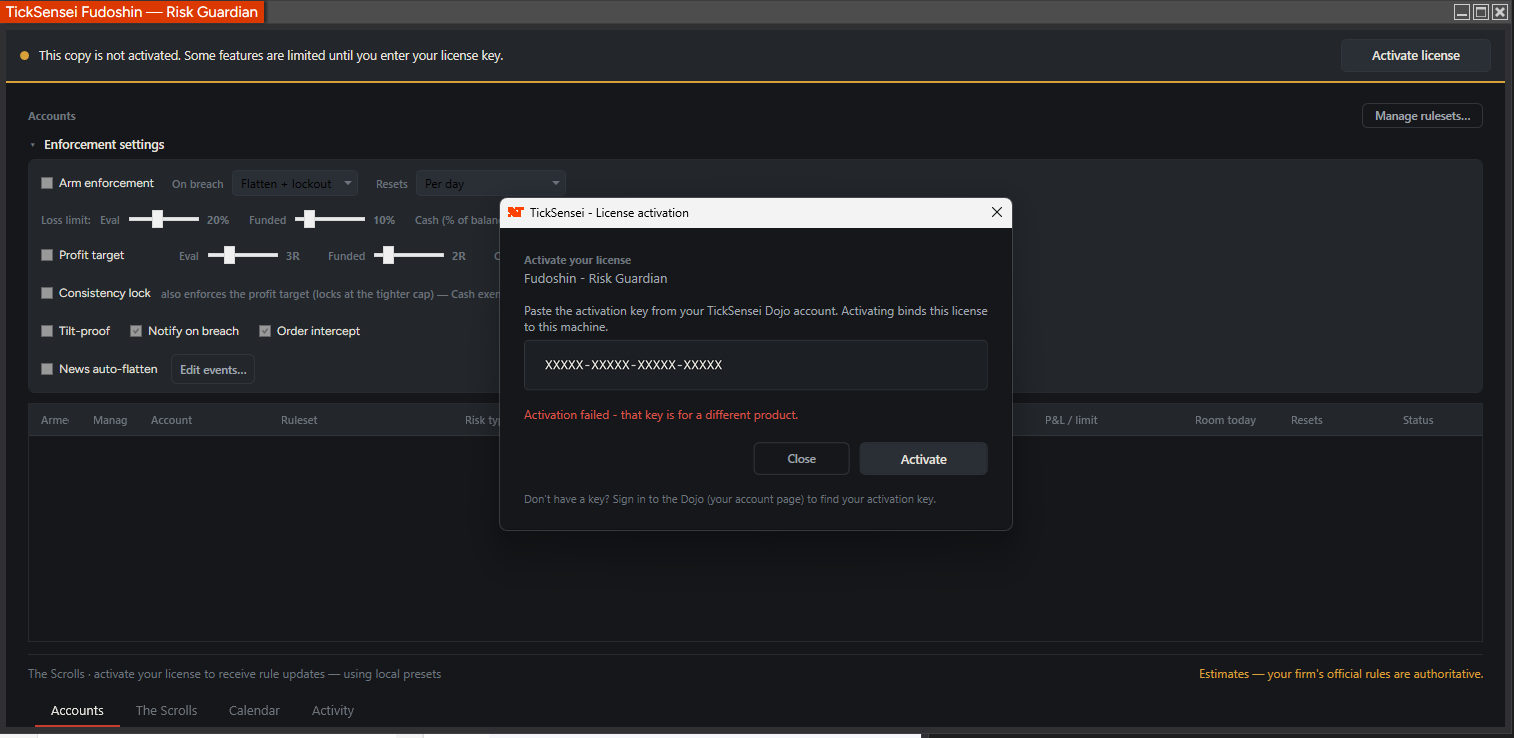 The activation dialog. Paste your key, click Activate. Keys are product-scoped, so pasting Ukemi’s key into Fudoshin fails with a clear message.
Get your key from the Dojo: sign in, find the product row under Your licenses, and click Show to reveal the activation key. Copy it, paste it into the dialog, and click Activate.
A few things worth knowing:
- Keys are product-scoped. The error in the screenshot above (“that key is for a different product”) means you pasted the right key into the wrong window. Check the product name in the dialog header.
- Activating binds the license to this machine. Your plan sets how many machines you can bind at once; the Dojo shows the count as
machines / maxMachines. - Belt keys activate everything at once. If you bought a White, Blue, Brown, or Black Belt, one key activates every product in the belt, in place, with no NinjaTrader restart.
- Activation is stored encrypted on your PC, so you do not re-enter the key every session.
The license agreement
The first time you activate on an account, you have to accept the license agreement. The add-on will send you to the Dojo’s /accept page to read and accept it. This is an account-level, one-time step: accept once and every future activation on that account goes straight through.
Step 5 - Confirm it is live
Quick checks, per product:
| Product | You know it is working when |
|---|---|
| Fudoshin (Risk Guardian) | Your connected accounts appear in the Accounts grid with an Equity, Floor, and Headroom value. |
| Ukemi (Watchdog) | The Accounts table shows Connected in the Feed column instead of not monitored. |
| Kiai (Alert Bridge) | Add the built-in email channel and click Send test. You should get mail within a minute. |
| Honbu (Command Center) | Combined Day P&L shows a number and the account tiles fill in. |
| Sensei (Copilot) | Ask it anything. The status line under the composer shows either your hosted allowance or your BYOK session cost. |
If a product still shows the “not activated” banner after activating, close and reopen that window.
Updating later
The Updater handles it. When it prompts, say yes, close NinjaTrader when asked, and let the new installer run. Your settings, presets, rulesets, and activation all survive an update: they live in Documents\NinjaTrader 8\<Product>\, not in bin\Custom.
Uninstalling
Run the installer with --uninstall, or use Add or Remove Programs and find the TickSensei entry. That removes the add-ons, the Updater, its scheduled tasks, the cached license, and the install state.
Troubleshooting
“Activation failed - that key is for a different product.” Right key, wrong window. Match the key to the product named in the activation dialog.
“This copy is not activated” after a successful activation. Reopen the product window. If it persists, check the Dojo that the license status is active and not expired.
The installer keeps asking me to close NinjaTrader. A NinjaTrader process is still alive even though the windows are gone. Open Task Manager and end NinjaTrader.exe, then retry.
Nothing appears in the Control Center menu. The files did not land in the right bin\Custom. This usually means more than one NinjaTrader 8 installation on the machine. Re-run the installer and confirm the path it reports.
Machine limit reached. You have bound the license on more PCs than your plan allows. Email support and we can unbind an old machine.
Where to go next
- Fudoshin - Risk Guardian: set your limits and arm enforcement
- Kiai - Alert Bridge: get alerts off the desktop
- Ukemi - Strategy Safety Net: protect automated strategies
- Sensei - AI Copilot: put an analyst on your charts
- Honbu - Command Center: every account on one screen
- The Dojo: licenses, billing, trials, and referrals
Estimates and tooling only. Your prop firm's published rules are always authoritative, and nothing here is financial advice. Questions? support@ticksensei.com